
You own a TRMNL. You brew beer. Put the two together.
The BrewForge plugin puts your fermenting batch and your beer stock on your TRMNL e-ink display. Install it from TRMNL, sign in, pick what each screen shows. No API token, no server to run.
Screen gallery
Two screens for your TRMNL
Rendered from the same Liquid templates TRMNL gets, with example data. Both screens also come in half horizontal, half vertical and quadrant layouts for mashups.
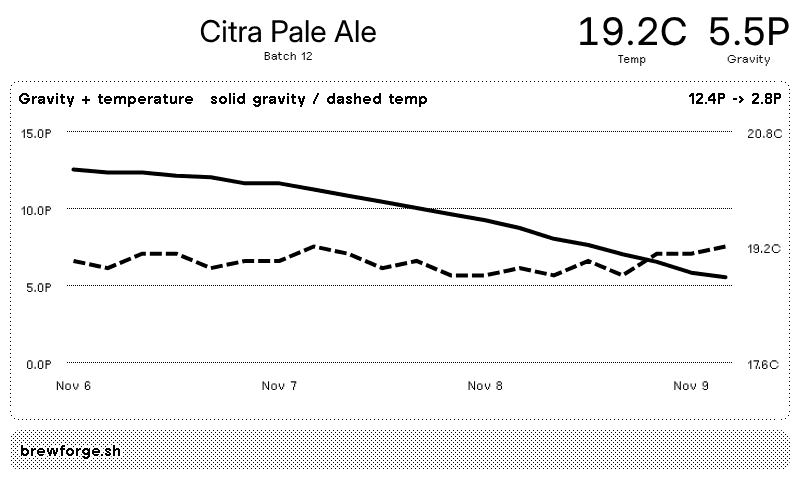
Fermentation
One fermenting batch: current gravity and temperature, its gravity and temperature over time, and how far it is toward final gravity.
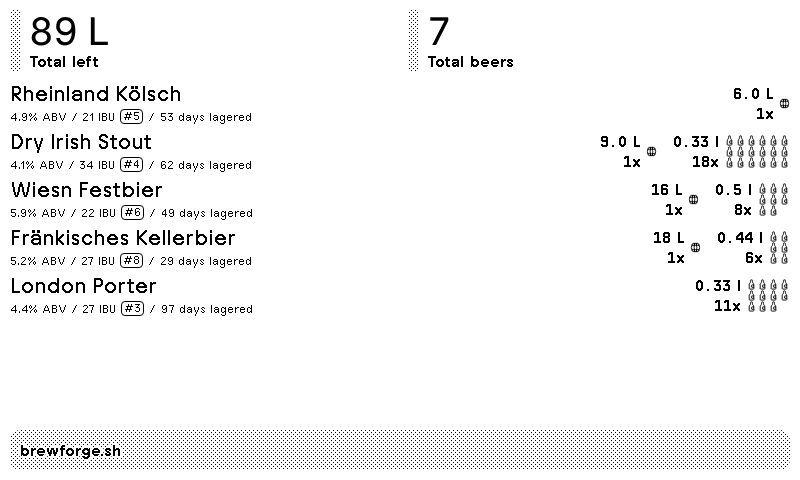
Beer stock
Your packaged beer from the cellar: total litres and beers on top, every beer with ABV, IBU, batch number and age, kegs and bottles next to it, lowest stock first.
Mashups
Shares the display with your other plugins
TRMNL mashups put several plugins on one screen. Every BrewForge screen has a half vertical, half horizontal and quadrant layout, so it fits any mashup slot: fermentation next to your calendar, beer stock under the weather, or both BrewForge screens side by side.
What each screen shows
Fermentation screen
- Current gravity and temperature, in your units (°P or SG, °C or °F)
- Gravity and temperature chart of the batch’s readings
- Progress from original gravity toward final gravity
- When the last reading arrived, in your TRMNL account’s time zone
Beer stock screen
- Total beer left and number of beers
- Each beer with ABV, IBU, batch number and age
- Kegs, bottles and cans; bottle and keg icons on the full screen if you like
- Beers running low first
Works on the original TRMNL and on TRMNL X. The preview in BrewForge shows both.
Install from TRMNL
No token, no copy and paste
You add BrewForge in TRMNL, not the other way round. TRMNL’s install flow connects the plugin to the BrewForge account you sign in with.
- 1Install BrewForge in TRMNLOpen BrewForge in the TRMNL plugin directory and install it.
- 2Sign in to BrewForgeTRMNL opens BrewForge. Sign in, and BrewForge connects this plugin copy to your account and sends you back.
- 3Choose what the screen showsOn the TRMNL page in BrewForge, pick Fermentation and a fermenting batch, or Beer stock. A preview shows the result in every layout.
- 4Add it to a playlist or mashupBack in TRMNL, add the plugin to your playlist. Install it once more for every extra screen; each one gets its own tab in BrewForge.
Where the numbers come from
The fermentation screen shows the readings of the batch you pick: from a hydrometer connected to BrewForge, such as an iSpindel, Tilt, RAPT Pill or GravityMon, or the gravity readings you log by hand. The stock screen shows the beer you packaged in the BrewForge cellar.
The TRMNL plugin is part of BrewForge Pro ($29.99/year). Try Pro free for one month.
Compare plansFAQ
Questions from TRMNL owners
Is the BrewForge TRMNL plugin free?
The plugin is part of BrewForge Pro ($29.99/year), and you can try Pro free for one month. Recipes, brew days and hydrometer logging are included in every plan, including Free.
Do I need an API key or token?
No. Install BrewForge from TRMNL’s plugins and sign in to BrewForge when asked. TRMNL’s install flow connects the plugin to your account.
Can I have several BrewForge screens?
Yes. Each copy of the plugin you install in TRMNL is one screen with its own settings, for example one per fermenter and one for beer stock. Use them in your playlist or together in a mashup.
Do I need a digital hydrometer?
No, but it helps. The fermentation screen shows the readings of the selected batch, from a connected hydrometer or the gravity readings you enter by hand. The beer stock screen needs no device at all.
How often does the screen update?
TRMNL fetches the screen from BrewForge on its normal playlist schedule. Changes you make in BrewForge show up with the next fetch.
Which time zone are the times shown in?
The time zone of your TRMNL account, which TRMNL sends with every screen request.
Your next batch starts here.
Free for up to 20 brews. No credit card.